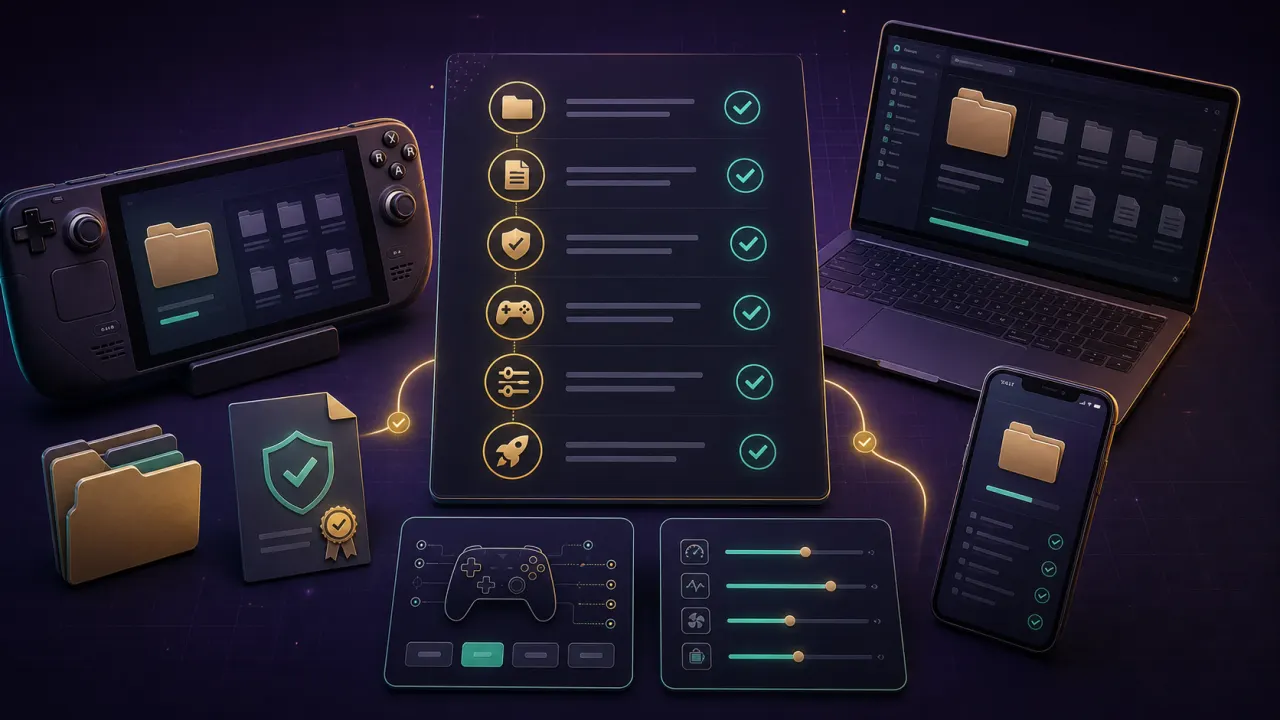
What You Need Before Installing Dusk on Steam Deck
Before starting Dusk Steam Deck setup, charge the device, switch to Desktop Mode, prepare a microSD card or internal folder, and keep your legally dumped GameCube ROM ready. Dusk itself does not include Nintendo game data.
Step 1: Download Dusk in Desktop Mode
Use the official Dusk project page or GitHub release, then choose the Steam Deck or Linux-compatible package. Avoid mirrors that bundle game files, ISO files, or unknown launchers.
Download links for this step
Step 2: Prepare Your Twilight Princess GameCube ROM Legally
Dusk Steam Deck setup requires a ROM dumped from your own legally purchased GameCube disc. You can also download the ROM from the link below.
Download links for this step
Step 3: Place Files and Launch Dusk
Create a clear Dusk folder, place the Dusk files and your legally owned ROM where the release expects them, then run the executable once in Desktop Mode to confirm the first launch.
Step 4: Add Dusk to Steam Library
Add the Dusk executable as a non-Steam game, rename the shortcut, and set compatibility options only if the official build notes require them. Return to Gaming Mode and test the launch.
Fixing the Z Button Binding on Steam Deck
If the Z button action is awkward in Dusk Steam Deck play, open Steam Input and map the missing GameCube Z action to a comfortable rear button or right stick click, then test Midna interactions.
Recommended Steam Deck Settings for Dusk
Start with a 60 fps target if the build and your device are stable. Use moderate brightness, a reasonable TDP cap, and texture packs only after the base Dusk Steam Deck install works.
Dusk Battery Life on Steam Deck
Battery life depends on brightness, frame cap, TDP, and texture pack size. Use the estimator below as a planning aid, then verify with your actual device and build.
Dusk Steam Deck battery life estimator
This planning estimate is not a benchmark. Use it to decide a starting frame cap, brightness, and TDP for Dusk Steam Deck sessions.
Common Dusk Steam Deck Issues and Fixes
Most early problems come from the wrong build, misplaced files, controller mapping, or unsupported enhancement combinations. Re-test the clean install before adding texture packs or mods.