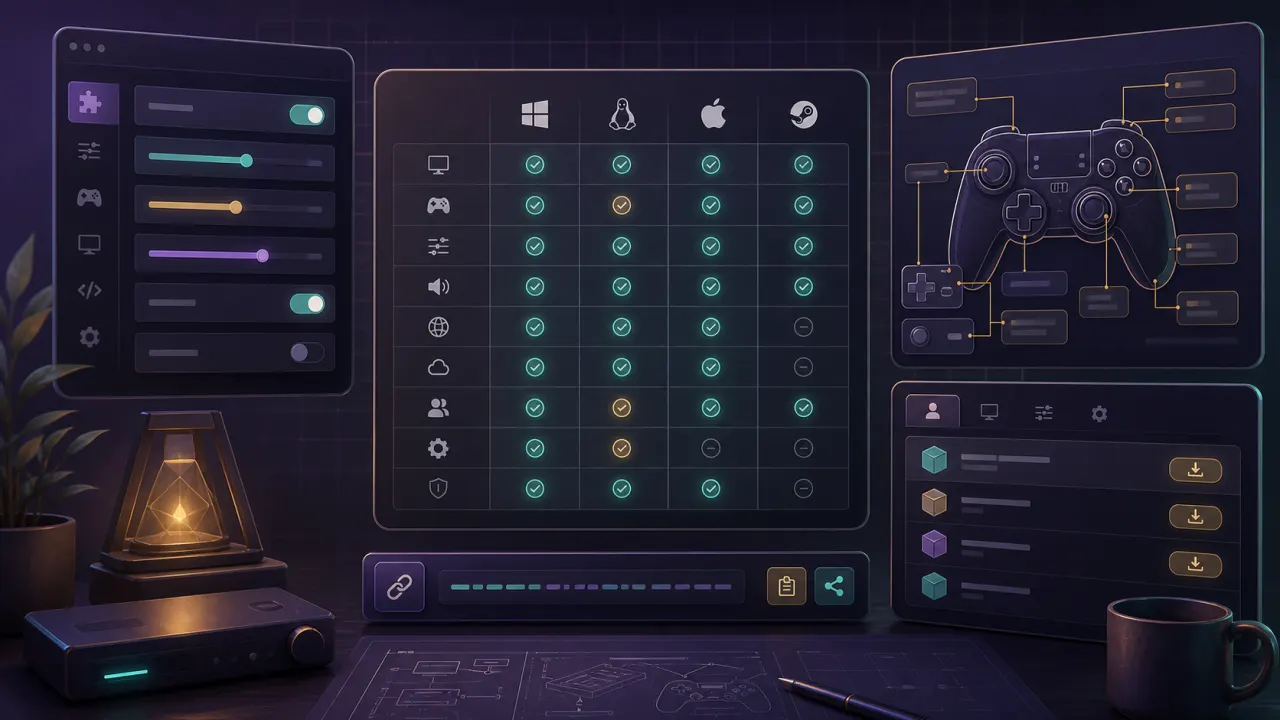
dusk gamecube controller: quick answer
Set up GameCube, Xbox, PlayStation, or Switch controllers for Dusk. Includes adapter notes, button mapping, Steam Input, and Z button checks.
dusk gamecube controller mapper
Select a controller and check which button should cover each GameCube action before testing in Dusk.
| Dusk / GameCube action | Recommended input | Check |
|---|
Dusk GameCube controller basics
Start with the newest Dusk release because v1.1.1 fixed default controller mappings, including Z/back binding notes. Test native input before layering Steam Input or third-party remappers.
Dusk GameCube controller with official adapters
Dolphin documentation notes that official Wii U/Switch GameCube USB adapters can be treated as GameCube adapters, while generic adapters may appear as normal gamepads.
Dusk GameCube controller mapping for Xbox and PlayStation
For Xbox and PlayStation pads, map confirm/cancel first, then camera, then Z/back. Do not tune rumble or gyro until the basic action loop works in-game.
Dusk GameCube controller checks on Steam Deck
On Steam Deck, launch Dusk from Desktop Mode once, then test Gaming Mode with Steam Input. If native mapping works, keep Steam Input minimal.